Where Do Hidden Photos Actually Go? Visual Step-by-Step Proof Inside Google Photos
Handing an unlocked smartphone to a friend to share a vacation snapshot carries an immediate undercurrent of dread. One errant swipe left or right can instantly expose medical paperwork, tax receipts, or intimate personal moments stored on the camera roll. While Google Photos organizes billions of everyday memories with computational sorting, keeping private files out of plain sight requires deliberate configuration. Managing media privacy across platforms often proves tricky; as highlighted in a recent Lifewire Report on moving image libraries between Google and iCloud, platform transitions frequently expose gaps in how operating systems isolate sensitive personal files.
Google addresses this exposure through two fundamentally different mechanisms: the benign, organizational Archive and the cryptographically separated Locked Folder. Understanding where hidden files actually travel when you remove them from your central feed prevents catastrophic data loss while safeguarding your everyday digital boundaries.
📌 Key Takeaways:
- The Architectural Difference: Archiving only tidies your main photo timeline while keeping images searchable, whereas the Locked Folder sequesters media behind system-level biometric and passcode authentication.
- Modern Cloud Integration: Locked Folder items default to device-only storage unless you explicitly enable end-to-end encrypted cloud backup sync tied to your Google account security settings.
- Absolute App Isolation: Hidden pictures inside a Locked Folder cannot be accessed by third-party editing tools, messaging applications, or automated Google system widgets like Memories.
The Accidental Swipe Dilemma and Grid Concealment
The core tension of mobile photo management stems from the chronological timeline. By default, every screenshot, downloaded meme, document scan, and camera exposure drops onto the exact same scrollable canvas. When users search for ways to hide media in Google Photos, they usually want to solve one of two distinct problems: clearing visual clutter or erecting an impassable security wall against snooping eyes.
Google long relied solely on an Archive utility. Archiving acts like tucking paperwork into an unlabelled drawer; it sweeps clutter off the primary dashboard but keeps it entirely unencrypted and easily discoverable through the search bar. True media concealment arrived only when Google deployed the Locked Folder system across Android and iOS ecosystems. This feature changes where files physically reside on disk, cutting them off from local file managers, gallery viewers, and cloud sync pipelines until deliberate biometric clearance unlocks the gate.
Archive Versus Locked Folder: How Google Segregates Media
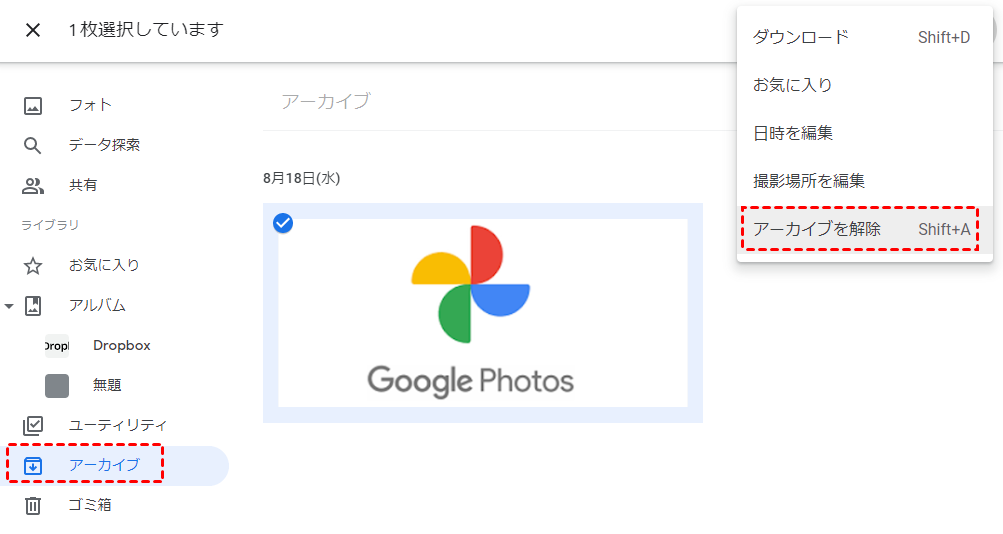
Conflating the Archive function with true hiding leads to embarrassing leaks. Archiving is purely cosmetic. When you select an image and tap Archive, Google Photos suppresses it from the main "Photos" tab. The photo remains visible inside manual albums, appears under search queries for identified faces or objects, and stays exposed to any connected editing software granted storage access permissions.
The Locked Folder functions as an isolated digital vault. Once an asset moves into this environment, Google strips it from your regular directory structure. It vanishes from search indices, face grouping models, Assistant animations, and automatically generated "Memories" reels. Even if someone borrows your device with the screen already unlocked, navigating to this directory requires immediate re-authentication via Face ID, Touch ID, fingerprint scan, or device PIN entry.
Media Isolation Protocols Across Storage Environments
Choosing between standard storage, standard archiving, and sandboxed vaults dictates whether your files sync across multiple devices or risk being erased during a hardware failure. The following matrix illustrates how Google treats photos across each distinct storage tier.
| Storage Tier | Search Visibility | Cloud Backup Sync | Security Barrier |
|---|---|---|---|
| Standard Main Feed | Full visibility via facial, location, and object indexing | Automatic background upload when enabled | None beyond standard device unlock |
| Archived Gallery | Direct search queries, albums, and metadata views | Standard Google One cloud allocation | None; visible upon navigating to the Archive tab |
| Locked Folder (Local Only) | Zero discovery; blocked from OS indexing and queries | Completely disabled; deleted if the app is uninstalled | Biometric lock or screen lock passcode protection |
| Locked Folder (Cloud Synced) | Zero discovery; sandboxed from Google AI training tools | Encrypted transmission to user Google account vault | Biometric scan plus Google account credentials |
Setting Up the Biometric Shield and Cloud Backup Sync
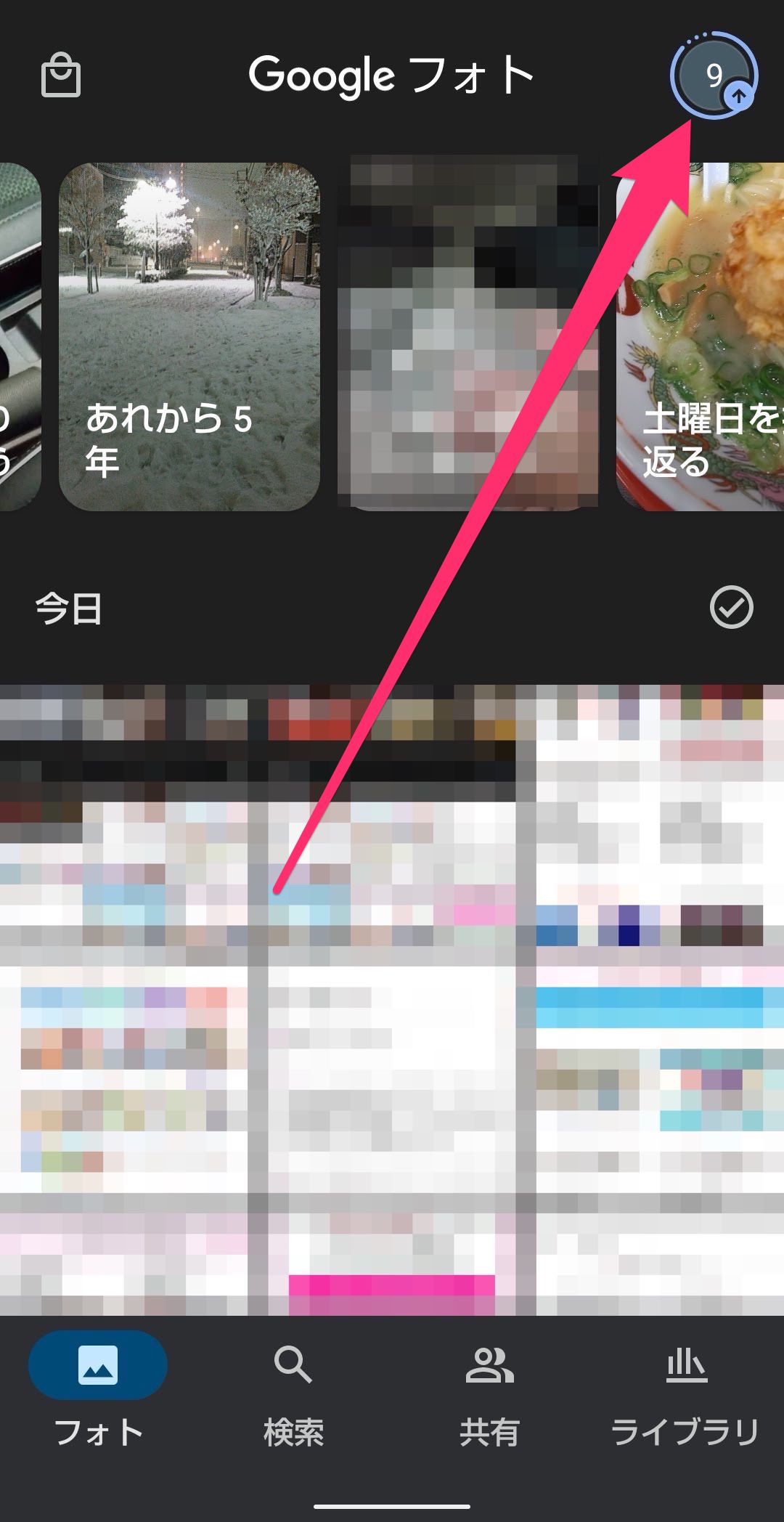
Establishing a fortified partition takes less than two minutes on any contemporary iOS or Android phone. Launch the Google Photos application, select the Collections or Library tab at the bottom of the interface, and scroll down to the Utilities section. Within this menu, tap Locked Folder. The application will immediately prompt you to authenticate using your device screen lock.
During the initial launch, Google presents a decisive toggle: keep files as device-only storage or turn on cloud backup sync. In previous iterations, Locked Folders lived exclusively on the host device. That architectural design created catastrophic scenarios where users who lost their phones, performed factory resets, or simply uninstalled the app lost every private photograph permanently. Enabling cloud backup sync encrypts the media, synchronizes it across all hardware authenticated with your primary Google credentials, and shields it from accidental hardware deletion.
If you prefer air-gapped protection, decline cloud synchronization. This keeps the files trapped strictly inside local sandbox memory, ensuring that no remote Google server holds a digital copy of those specific frames.
Accessing, Moving, and Unhiding Media Step-by-Step
Relocating sensitive pictures from your general feed into protection requires only a few taps:
Open the primary photo grid, highlight one or more sensitive assets by long-pressing their thumbnails, and tap the three-dot overflow menu in the upper corner. Select Move to Locked Folder. The app issues an alert confirming that the media will drop off your shared albums, memories, and cloud streams. Tap Move to finalize the handoff.
Retrieving and unhiding photos follows an equally straightforward operational path:
1. Open Google Photos and navigate to Collections (or Library on older application builds).
- Tap Locked Folder and pass biometric lock verification via face, fingerprint, or system PIN.
- Browse the segregated gallery to identify the specific item you want to restore.
- Long-press the image to bring up contextual actions.
- Select Move from the bottom menu bar to return the file to your primary, unprotected chronological gallery.
Once released, the image instantly re-indexes. It will reappear in your timeline according to its original EXIF capture date, becoming visible again to local third-party utilities and regular system backups.
Account Security and Third-Party App Blindspots
The security strength of your hidden media depends directly on the integrity of your host device. When you permit chat software, image editors, or file uploaders to access "All Photos," mobile operating systems traditionally grant broad read permissions across the user directory. Sandboxed folders circumvent this vulnerability entirely. Apple's PhotoKit API and Google's Android Media Provider treat the Locked Folder as an excluded zone. Apps like WhatsApp, Instagram, and Discord cannot parse, preview, or upload pictures parked behind this biometric threshold.
Physical security presents different vulnerabilities. If you share your phone passcode with a partner, family member, or coworker, the local biometric lock setup defaults to that exact master passcode when Face ID or fingerprint recognition fails. Anyone holding device-level PIN privileges can bypass the folder gate. For absolute protection, you must implement strong secondary safeguards: activate Google account two-factor authentication via hardware security keys or authenticator apps, avoid sharing device PINs, and regularly audit which active sessions maintain access to your central Google dashboard.
Frequently Asked Questions (FAQ)
Q1: Will photos in my Locked Folder show up in automated Google search results or Memories?
No. Media residing inside the Locked Folder is completely stripped from background computational scans. It will not generate automated notification montages, will not show up in searches for faces or locations, and will never appear on connected Google Nest smart displays.
Q2: What happens to my hidden photos if I lose my phone or upgrade hardware?
If you enabled cloud backup sync inside the Locked Folder settings, your media restores seamlessly as soon as you sign into Google Photos on your new handset and pass biometric authentication. If you left the feature on device-only storage, those files remain strictly on the old physical flash memory and will be permanently lost if that device is damaged, reset, or lost.
Q3: Can family members in my Google One shared storage plan see my Locked Folder?
No. While Google One storage pools gigabytes across family group members, user partitions remain completely separated. Family members only share the raw quantitative storage quota; they have zero visual access or administrative control over your personal library, let alone your biometrically locked repository.
Maintaining Strict Visual Boundaries on Shared Hardware
Smartphones serve simultaneously as business archives, filing cabinets, and candid diaries. Relying on simple user vigilance to keep those spheres apart inevitably results in accidental exposure. Archiving offers clean visual aesthetics for unwanted receipts and mundane screenshots, but it offers zero defense against curious fingers.
Relying on the Locked Folder transforms accidental exposure into a calculated non-issue. By isolating sensitive identity scans, financial paperwork, and deeply personal moments behind system-level cryptography, you establish definitive control over your visual footprint. Take the two minutes required to verify your biometric settings, review your cloud backup preferences, and ensure your private files stay private.
